BRHwA4kQ1rSS5bZ98N5SF0dWtrAJ7l09xA8QKHvwVl-pt6PCCiV0SwPw094_1m-MH9I1bjmwfHDgzCKXRxOjo18b2UZ_TfF_wrqSX2WTEUQtlSkeV7w080xzxYqE1hmcLmrKKlQe-_i1fNNSCmx2N7heKC6weQxUgUHHARK0HQ1VomSsXnARqD_TNHHSUqbp

How to Edit Videos on a Low-End Device Without a Dedicated GPU

Think you need an expensive gaming PC or a powerful graphics card to edit videos? Not necessarily.

If your laptop or PC has no dedicated GPU, limited RAM, or an older processor, you can still edit videos. You just need to use the right settings, editing techniques, and workflow.

Video editing on a low-end device may not be as fast as working on a high-end workstation, but with a few smart changes, you can make your editing experience much smoother.

In this guide, we’ll explain how to edit videos on a low-end PC without a dedicated GPU and how to reduce lag while editing.

1. Use the Right Video Editing Software
The first step is choosing software that your computer can handle.

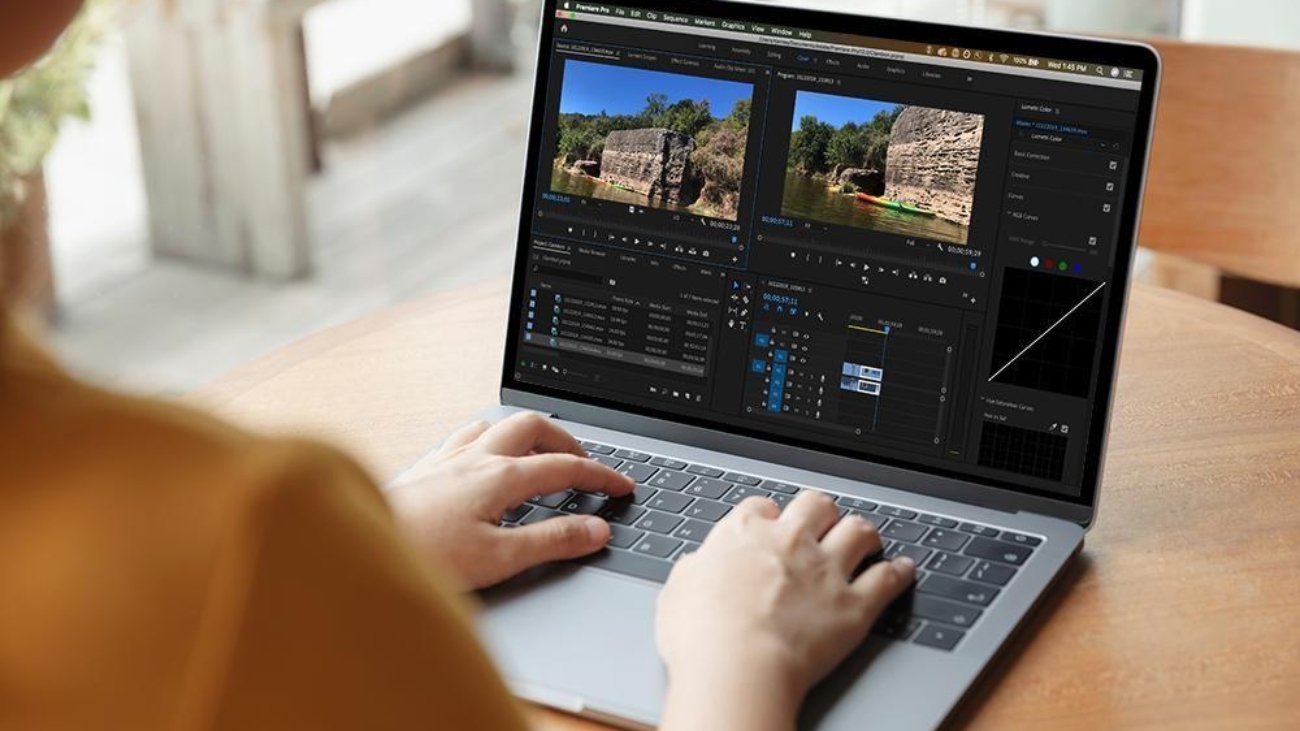
Popular options include Adobe Premiere Pro, DaVinci Resolve, CapCut, and other lightweight video editors. However, the performance you get will depend heavily on your processor, RAM, storage, and graphics hardware.

Before starting a large project, check the software’s system requirements.

For example, Adobe’s current Premiere requirements list 8GB RAM as the minimum for Windows, while Adobe recommends 16GB for HD work and 32GB or more for 4K workflows.

If your computer is below the recommended specifications, working with lower-resolution footage and proxies can help.

2. Use Proxy Files
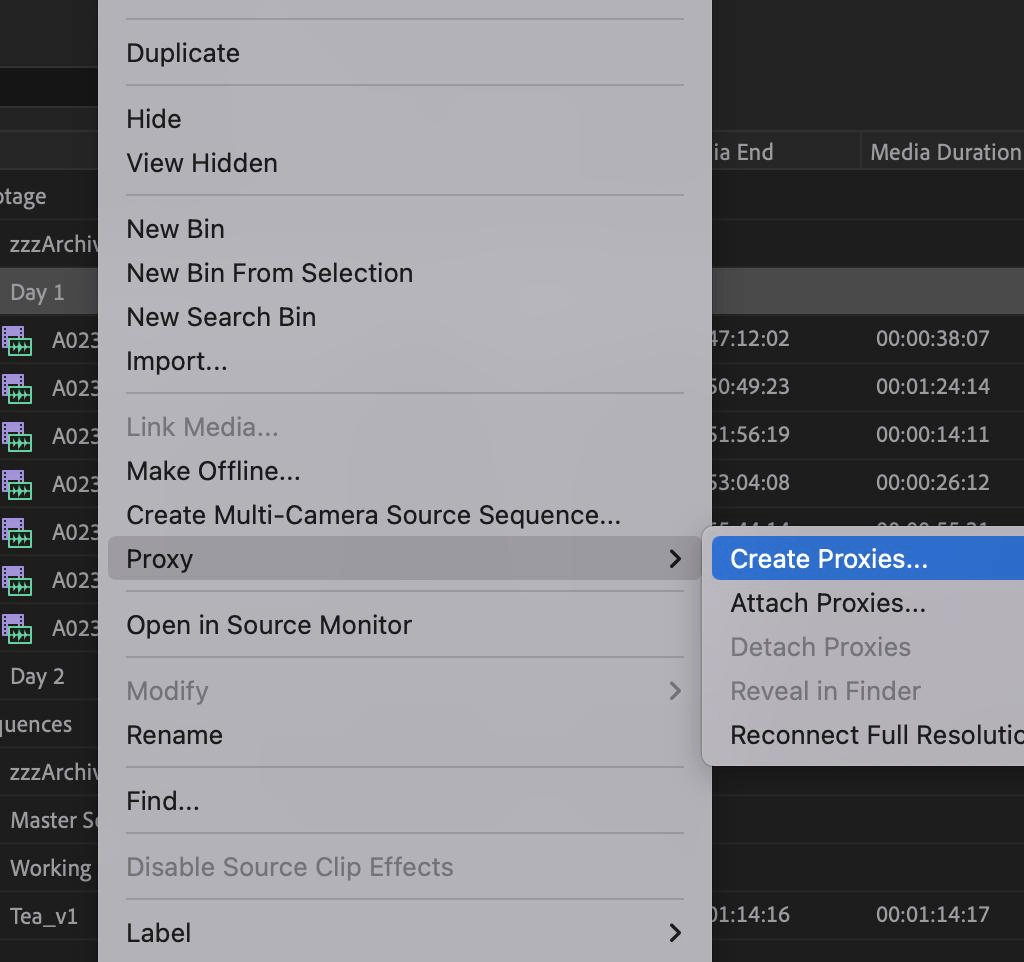
Proxy editing is one of the best solutions for low-end computers.

A proxy is a lower-resolution copy of your original video. Instead of asking your computer to process a large 4K file while editing, you work with a lightweight version.

For example:

Original footage: 4K

Proxy: 720p or 1080p

Edit smoothly

Export using original footage

Adobe specifically recommends proxy workflows for high-resolution footage and less powerful hardware.

In Premiere Pro, you can select your media and choose:

Right-click → Proxy → Create Proxies

This can dramatically improve timeline playback when working with demanding footage.

3. Lower Your Playback Resolution

If your timeline is lagging, don’t immediately blame your computer.

Try reducing the preview resolution.

For example, if your footage is 4K, change the playback resolution from:

Full → 1/2 → 1/4

You may notice that the preview looks less sharp, but your timeline should become more responsive.

Remember, this affects the editing preview, not necessarily the final quality of your exported video.

4. Don’t Edit Everything in 4K

If your computer struggles with 4K footage, consider creating a 1080p timeline when the final project doesn’t actually require 4K delivery.

Working with lower-resolution media reduces the amount of processing required during editing.

For social media content such as Instagram Reels, YouTube Shorts, and many other online videos, 1080p can often be sufficient depending on your delivery requirements.

5. Close Background Applications

Your editing software needs as many system resources as possible.

Before starting a heavy project, close unnecessary applications such as:

  • Chrome with many tabs
  • Games
  • Discord
  • Photoshop
  • Other editing software
  • Cloud-sync applications you don’t need

You can also check Task Manager on Windows to see which applications are consuming CPU and RAM.

More available RAM and CPU resources can help your editing software run more smoothly.

6. Keep Your SSD Free
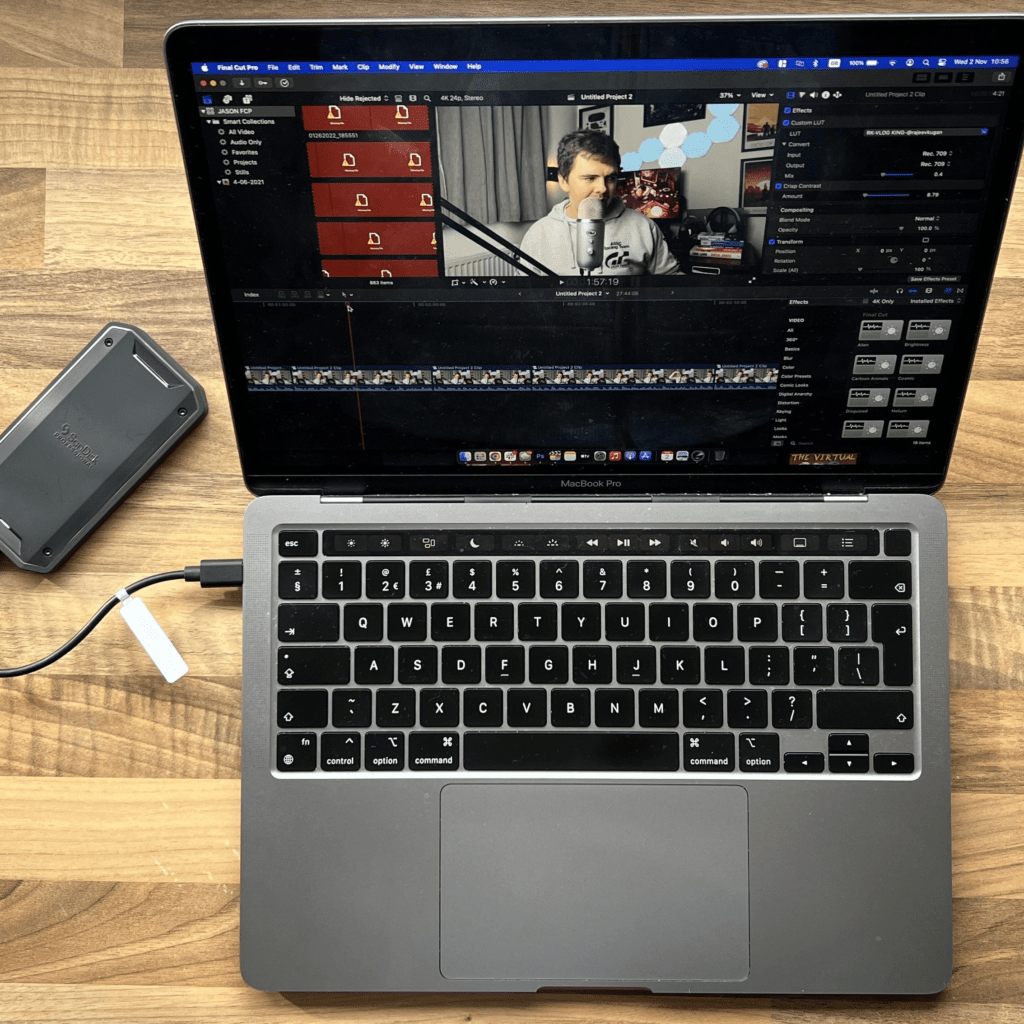
Storage speed can also affect your editing workflow.

If possible, keep your operating system, editing software, cache, and active projects on an SSD rather than a slow hard drive.

Also avoid filling your SSD completely. Keep a reasonable amount of free space for temporary files, cache, and project data.

A well-organized storage system can make importing footage, loading projects, and managing cache files easier.

7. Avoid Heavy Effects While Editing

Effects can put a lot of pressure on your computer.

If you have a low-end device, avoid stacking too many demanding effects while editing.

Heavy effects can include:

  • Complex blur effects
  • Noise reduction
  • Heavy color grading
  • Multiple adjustment layers
  • Advanced motion graphics
  • 3D effects
  • Large particle effects

Instead, finish your basic cuts first and add demanding effects toward the end.

You can also render or preview sections of your timeline before watching them at full quality.

8. Use Render and Cache Features

When a particular section of your timeline is too demanding, rendering it can improve playback.

DaVinci Resolve, for example, provides proxy, optimized-media, and render-cache workflows specifically to improve performance on demanding timelines.

The basic idea is simple:

Edit → Cache/Render difficult section → Preview smoothly

This can be especially useful when your timeline contains effects, color grading, transitions, or motion graphics.

9. Keep Your Drivers and Software Updated

Even if you don’t have a dedicated GPU, your computer may still use integrated graphics.

Keeping your operating system, editing software, and graphics drivers updated can help with compatibility and stability.

Adobe notes that graphics drivers can affect Premiere performance and recommends keeping supported drivers updated.

However, don’t update everything immediately before an important client project. If your current setup is stable, consider testing major updates before using them on important work.

10. Export Smartly

Exporting a video can take longer on a low-end computer. That’s normal.

Try to avoid running other heavy applications while exporting.

For common online videos, use an efficient format such as H.264 when appropriate. Premiere can use hardware-accelerated encoding and decoding for supported H.264/H.265 workflows when compatible hardware is available.

If your device doesn’t support hardware acceleration for a particular workflow, the CPU may have to do more of the work.

Best Workflow for a Low-End PC

If you’re editing without a dedicated GPU, follow this simple workflow:

Import footage

Create proxies

Edit using 1/2 or 1/4 playback resolution

Add basic transitions and effects

Render/cache heavy sections

Turn off proxies for final checking

Export the final video

This approach lets you focus on editing instead of constantly fighting timeline lag.

Final Thoughts

You don’t need a high-end PC to start video editing.

A low-end laptop or a computer without a dedicated GPU can still handle many editing projects if you use the right workflow. Proxy files, lower playback resolution, optimized media, SSD storage, fewer heavy effects, and proper cache management can make a major difference.

If you’re a beginner or freelance editor working with a limited setup, don’t let your hardware stop you from practicing. Improve your skills first and upgrade your computer when your projects and workload demand it.

The most important thing is not having the most expensive setup—it’s knowing how to get the best performance from the setup you already have.
52_3eY3REDGjcSQLW1coMV-eoMi_uL-lYVkCKZEYzNqYjw6SHADv0FPRZhab0hu6RGST0sqgSUp8eCSGXDZ6gWMIMgKvn6FIzSXKroNS_gU9vYMMQZDtNk4OWGENarvZLah4hQjPgPboDuhO2jxWMSbhLuKXymJh32VZGxAYPlOYYVzph9bjf1YzZyFaVa2l

Best TECH products for video editing

Best Tech Products for a Smooth Video Editing Workflow in 2026

Focus Keyword: best tech products for video editing
Secondary Keywords: video editing setup, best gadgets for video editors, video editing workflow, tech products for content creators

Video editing can be demanding, especially when you’re working with 4K footage, motion graphics, color grading, and large project files. The right technology can make your workflow faster, smoother, and more reliable.

From a powerful laptop to a fast SSD and color-accurate monitor, the best tech products for video editing aren’t necessarily the most expensive ones—they’re the products that solve the problems you face every day.

Image

1. Powerful Laptop or Desktop

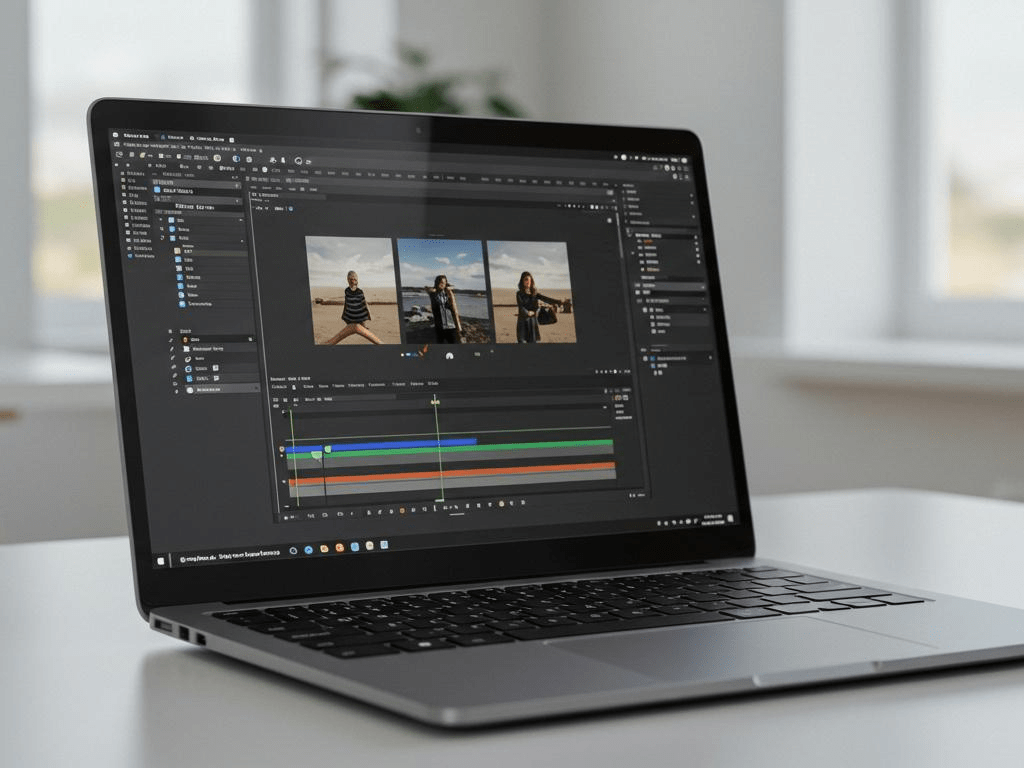
Your computer is the heart of your video editing workflow. Modern applications such as Adobe Premiere Pro, After Effects, and DaVinci Resolve can require significant CPU, GPU, RAM, and storage performance.

For a comfortable editing experience, consider:

  • Modern multi-core processor
  • 16GB RAM or more
  • 32GB+ RAM for advanced editing and After Effects
  • Dedicated or powerful integrated GPU
  • Fast NVMe SSD
  • Good cooling system

For professional 4K editing and heavy motion graphics, a higher-performance machine can save considerable time during previews, effects processing, and exports. Current 2026 laptop guides also emphasize CPU/GPU performance, RAM, fast SSD storage, and display quality for creative workloads. (91mobiles)

Why it matters

A powerful computer means less timeline lag, faster previews, and shorter rendering times.


2. Fast SSD Storage

Video projects can quickly consume hundreds of gigabytes. A fast SSD is therefore one of the most useful tech products for video editors.

Image

A good storage setup could look like this:

Internal SSD → Software and operating system

Secondary SSD → Current editing projects

External SSD → Project files and backups

SSD storage can improve application loading and file access, while external storage is useful when large video libraries exceed internal capacity. (HP)


3. Color-Accurate Monitor

A monitor isn’t just for seeing your timeline. If you’re doing color correction or grading, you need a display you can trust.

Look for:

  • 4K resolution
  • Good color accuracy
  • Wide color gamut
  • IPS or professional-grade display technology
  • Adjustable brightness
  • Comfortable screen size

A larger monitor also gives you more room for your timeline, effects panels, scopes, and preview window.

Recent 2026 monitor recommendations emphasize 4K resolution, color accuracy, wide color coverage, and USB-C/Thunderbolt connectivity for professional post-production. (TechRadar)


4. External Hard Drive for Backup

One of the biggest mistakes an editor can make is keeping a project in only one location.

Imagine spending 20 hours editing a client project and then losing the footage because of a drive failure.

That’s why backup storage is essential.

Keep copies of:

  • Original footage
  • Premiere/After Effects project files
  • Graphics
  • Audio
  • Final exports
  • Project assets

For important client work, having both local and cloud/off-site backups provides additional protection.


5. Good Headphones

Video editing isn’t only about visuals. Audio quality is equally important.

Good headphones can help you identify:

  • Background noise
  • Voice problems
  • Audio clipping
  • Music levels
  • Sound effects
  • Unwanted hums

If you create YouTube videos, podcasts, reels, advertisements, or client projects, reliable audio monitoring can make a noticeable difference.

Image

6. Second Monitor

A second monitor can significantly improve productivity.

You can keep your:

Main monitor: Timeline + editing software

Second monitor: Preview + reference material + scripts + project files

Instead of constantly switching between windows, you can see more of your workflow at the same time.

This can be especially useful for professional editors working on long-form content and complex projects.


7. Comfortable Keyboard and Mouse

Editors spend hours clicking, dragging, trimming, and navigating timelines.

A comfortable keyboard and mouse can make long editing sessions easier.

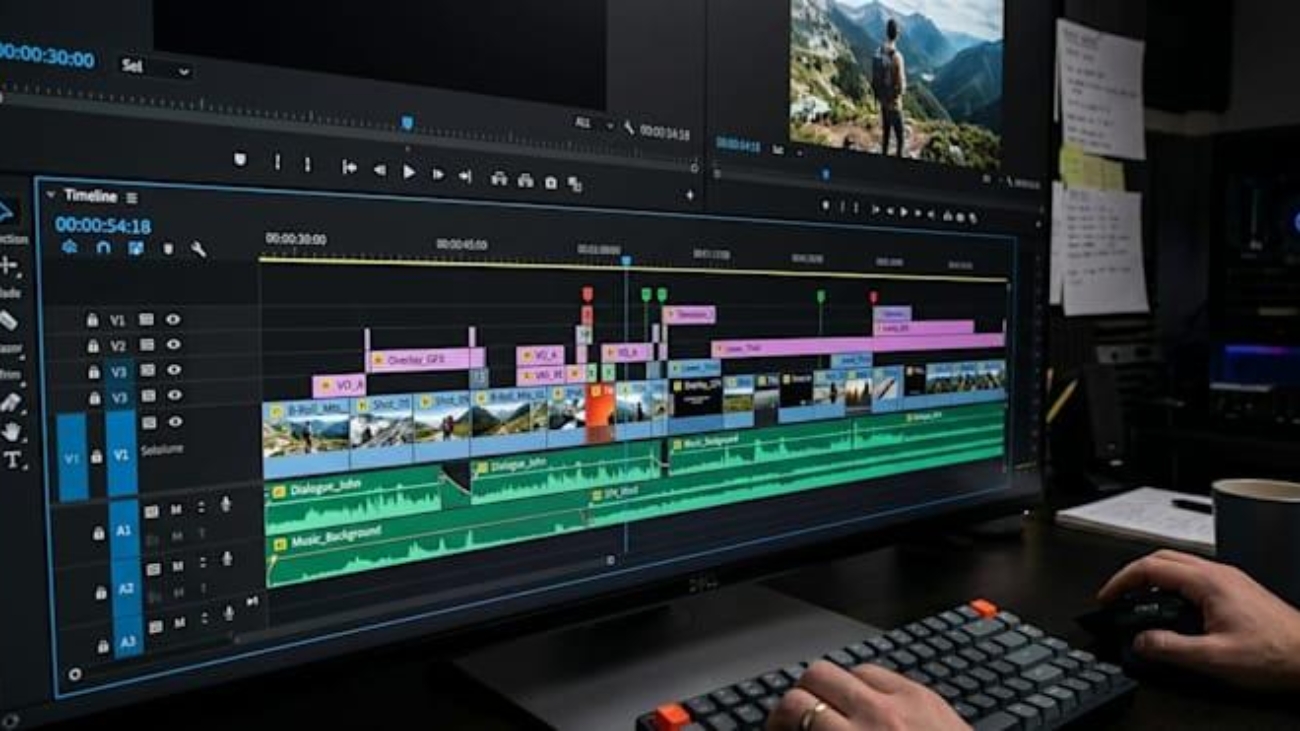
A keyboard with customizable shortcuts can be particularly useful because applications such as Premiere Pro and After Effects rely heavily on keyboard commands.

A mouse with programmable buttons can also help you assign frequently used functions.


8. USB-C Hub or Docking Station

Modern laptops often don’t have enough ports for every editing accessory.

A USB-C hub or docking station can allow you to connect:

  • External SSD
  • Monitor
  • Mouse
  • Keyboard
  • Card reader
  • Headphones
  • Other USB devices

This can turn a laptop into a more complete desktop-style editing workstation.

Image

9. Fast Memory Card Reader

If you record your own footage, a fast card reader can save a surprising amount of time.

Instead of transferring footage through a slow connection, a high-speed reader can quickly move files from your camera’s SD or CFexpress card to your editing storage.

This becomes particularly useful when you’re handling large amounts of 4K footage.


10. Cloud Storage

Cloud storage provides another layer of protection for important projects.

It can be useful for:

  • Client collaboration
  • Project backups
  • Sharing large files
  • Storing documents
  • Keeping important project assets accessible

For freelancers, cloud storage can also make it easier to share files with clients without repeatedly transferring everything through physical drives.


11. UPS or Power Backup

Power interruptions can be frustrating when you’re rendering a project or working on an important client edit.

A UPS can provide temporary power to your workstation, giving you time to save your project and shut down safely.

For desktop editors, it’s a relatively simple addition that can protect both equipment and ongoing work.


What Should You Buy First?

You don’t need to purchase everything at once.

If you’re building a video editing setup from scratch, prioritize your purchases in this order:

PriorityTech ProductWhy
🥇 1Powerful PC/LaptopCore editing performance
🥈 2Fast SSDFaster file access
🥉 3Backup DriveProtects your projects
4Color-Accurate MonitorBetter visual accuracy
5HeadphonesBetter audio editing
6Second MonitorMore workspace
7Keyboard & MouseComfort and productivity
8USB-C HubBetter connectivity
9Card ReaderFaster footage transfer
10UPSPower protection

Best Setup for Different Editors

🎬 Beginner Editor

A beginner can start with:

  • 16GB RAM
  • SSD storage
  • Capable CPU
  • Basic GPU
  • Good headphones
  • External backup drive

You don’t need an expensive professional workstation immediately.

💻 Freelance Video Editor

Freelancers should consider:

  • 32GB RAM
  • Powerful CPU/GPU
  • Fast NVMe SSD
  • External SSD
  • Color-accurate monitor
  • Good headphones
  • Cloud backup

🎥 Professional Editor

Professionals working with 4K footage, VFX, and motion graphics may benefit from:

  • High-end workstation
  • 32–64GB+ RAM depending on workload
  • Powerful GPU
  • Multiple SSDs
  • Professional monitor
  • Dedicated backup system
  • UPS
  • Professional audio equipment

Final Thoughts

The best tech products for video editing aren’t simply the products with the highest specifications. The best setup is one that removes bottlenecks from your workflow.

A powerful computer gives you performance, a fast SSD improves file handling, a good monitor helps with visual accuracy, and reliable backup storage protects your work.

Start with the component that’s currently slowing you down, then upgrade your setup step by step.

For more tech product guides, buying advice, and technology-related content, explore ShubhamEdits.

Suggested images for your blog

For a professional-looking article, I’d use 4–5 images:

  1. Hero image: Complete video editing workstation
  2. After the laptop section: Laptop + editing timeline
  3. After SSD section: External SSD + laptop
  4. After headphones section: Headphones + editing setup
  5. Before final thoughts: Complete professional editing desk

This gives the article good visual breaks without making it feel overloaded with images.

Why RAM Prices Increased Suddenly in 2026: The Real Reasons Behind the Memory Price Surge

If you’ve recently searched for RAM upgrades or planned to buy a new laptop, PC, or gaming system, you’ve probably noticed one thing—RAM prices have increased dramatically in 2026.

Whether it’s DDR4, DDR5, or laptop memory, prices have risen much faster than many buyers expected. But why did this happen?

The answer isn’t a single reason. It’s the result of AI demand, limited manufacturing capacity, supply chain priorities, and the structure of the global memory industry.

In this article, we’ll explain the major reasons behind the 2026 RAM price surge in simple language.


What Is RAM?

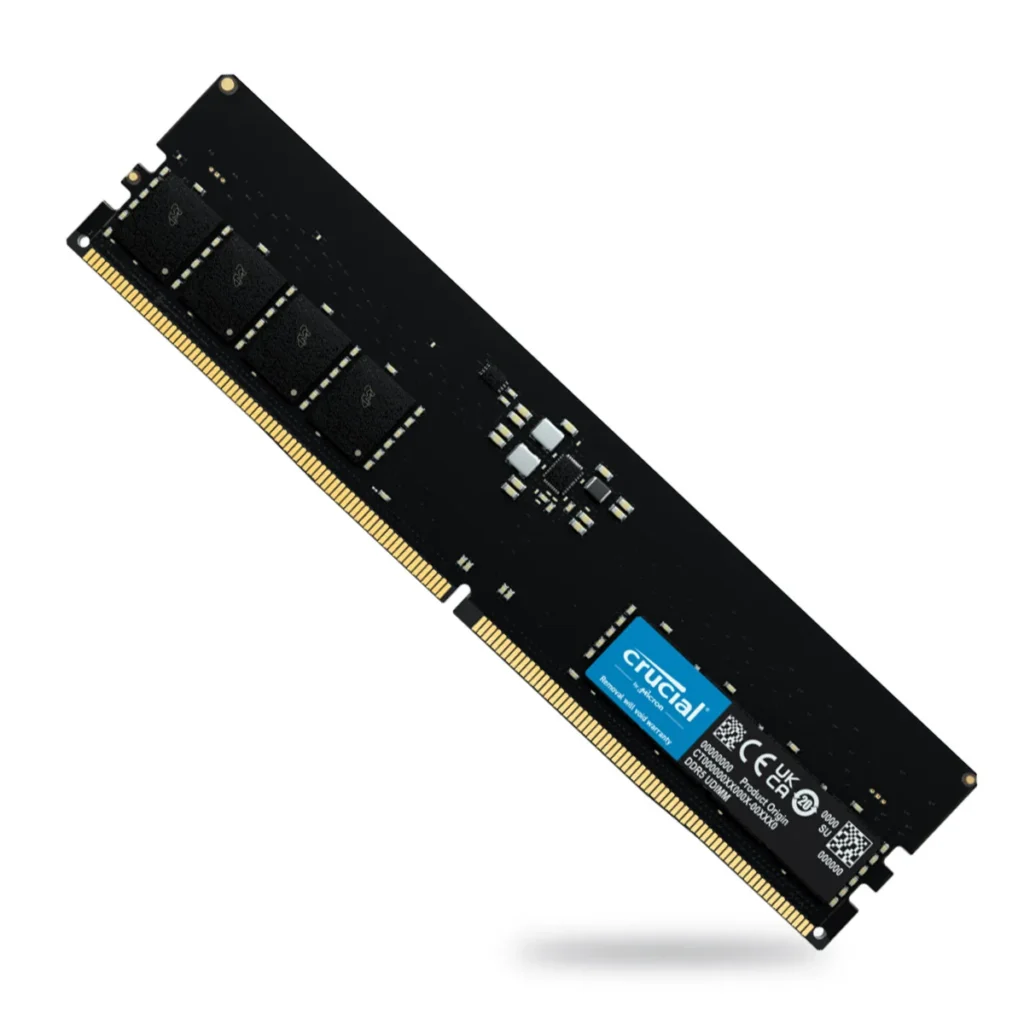
RAM (Random Access Memory) is your computer’s short-term memory. It temporarily stores the data your CPU needs while running applications.

More RAM means:

  • Faster multitasking
  • Better gaming performance
  • Smoother video editing
  • Improved productivity

Because RAM is essential in almost every electronic device, even a small shortage can affect millions of products worldwide.


Why Did RAM Prices Suddenly Increase in 2026?

Here are the biggest reasons.


1. AI Created Massive Demand for Memory

The biggest reason behind the price increase is Artificial Intelligence (AI).

Companies like OpenAI, Google, Microsoft, Meta, Amazon, and other cloud providers are building enormous AI data centers. These servers require vast amounts of memory to train and run AI models.

Instead of ordering thousands of RAM modules, these companies purchase millions of DRAM chips, consuming a huge share of global production. Manufacturers have increasingly prioritized these high-value customers, leaving less supply for consumer products like PCs and laptops.


2. Memory Manufacturers Shifted Production

Memory companies don’t manufacture only one type of RAM.

Leading manufacturers started allocating more production capacity to High Bandwidth Memory (HBM) used in AI servers because it generates higher profits than standard desktop and laptop memory.

As a result:

  • Less DDR4 production
  • Limited DDR5 availability
  • Higher consumer RAM prices

This shift reduced the supply available for regular PC users.


3. Only Three Companies Dominate the Market

The global DRAM market is largely controlled by:

  • Samsung Electronics
  • SK hynix
  • Micron Technology

Because only a few companies produce most of the world’s DRAM, any increase in demand or shift in production has a significant impact on global prices. Apple has also noted that this concentrated supplier base is contributing to higher memory costs.


4. Building New Memory Factories Takes Years

You might wonder:

“Why don’t manufacturers just produce more RAM?”

Unfortunately, it’s not that simple.

Building a semiconductor fabrication plant (fab):

  • Costs billions of dollars
  • Takes several years to complete
  • Requires highly specialized equipment

Even though companies are expanding production, analysts expect supply to remain tight for some time because new factories cannot come online overnight.


5. Laptop and Smartphone Demand Also Increased

Modern devices now require more memory than ever before.

Today’s laptops commonly ship with:

  • 16GB RAM
  • 32GB RAM
  • AI-enabled features
  • Faster DDR5 memory

Similarly, smartphones are launching with:

  • 8GB RAM
  • 12GB RAM
  • 16GB RAM

Higher memory requirements across millions of devices further increase demand.


6. DDR5 Transition Increased Costs

The industry is gradually moving from DDR4 to DDR5.

During this transition:

  • Manufacturers reduce DDR4 production.
  • DDR5 manufacturing is still scaling.
  • Supply of both memory types becomes tighter.

This temporary imbalance contributed to higher prices across the market.


7. Supply Could Not Keep Up With Demand

The classic rule of economics applies:

High Demand + Limited Supply = Higher Prices

With AI companies buying enormous quantities of memory and manufacturers prioritizing enterprise customers, consumers faced reduced availability and rising prices.


How Does This Affect Consumers?

Higher RAM prices don’t just affect people upgrading their PCs.

The impact includes:

  • More expensive laptops
  • Higher desktop PC prices
  • Costlier gaming computers
  • Increased smartphone prices
  • Higher workstation costs

Memory has become a much larger portion of the total cost of many electronics than it was just a year earlier.


Should You Buy RAM Now or Wait?

If you urgently need more memory for:

  • Video editing
  • Gaming
  • Software development
  • College or office work

it’s usually better to buy when you need it rather than delaying indefinitely.

However, if your upgrade isn’t urgent, you may want to monitor prices over the coming months. Some analysts expect price increases to slow as consumer demand softens, although AI demand is still expected to keep memory costs elevated.


Final Thoughts

The sudden rise in RAM prices during 2026 wasn’t caused by a single event. Instead, it resulted from several factors working together:

  • Explosive AI infrastructure growth
  • Manufacturers prioritizing AI memory
  • Limited DRAM suppliers
  • Slow expansion of manufacturing capacity
  • Transition from DDR4 to DDR5
  • Strong demand from laptops, smartphones, and data centers

Until additional production capacity comes online and supply better matches demand, RAM prices may remain higher than consumers were accustomed to in previous years.

Top 5 Best Laptops for Video Editing Under ₹80,000 in 2026

If you’re a content creator, YouTuber, freelancer, or professional video editor, choosing the right laptop is one of the most important investments you can make. Video editing software like Adobe Premiere Pro, After Effects, DaVinci Resolve, and CapCut requires a powerful processor, dedicated graphics card, fast SSD storage, and sufficient RAM.

The good news? In 2026, you don’t need to spend over ₹1 lakh to get a capable editing laptop. There are several excellent laptops under ₹80,000 that offer smooth 1080p and even basic 4K editing performance.

In this guide, we’ll explore the 5 best laptops for video editing under ₹80,000 in 2026.


What Should You Look for in a Video Editing Laptop?

Before buying, make sure your laptop has:

  • Processor: Intel Core i5/i7 H-series or AMD Ryzen 7
  • Graphics Card: NVIDIA RTX 3050 or RTX 4050 (preferred)
  • RAM: Minimum 16GB
  • Storage: 512GB NVMe SSD
  • Display: Full HD IPS with good color accuracy (100% sRGB preferred)
  • Cooling: Efficient thermal design for long editing sessions

1. ASUS TUF Gaming A15

Best Overall Video Editing Laptop Under ₹80K

Specifications

  • AMD Ryzen 7 Processor
  • NVIDIA RTX 3050 Graphics
  • 16GB DDR5 RAM
  • 512GB SSD
  • 15.6-inch Full HD 144Hz Display

Why Buy?

The ASUS TUF Gaming A15 remains one of the strongest choices for creators under ₹80,000. It combines a powerful Ryzen processor with dedicated RTX graphics, making timeline playback, rendering, and multitasking significantly smoother.

Pros

✅ Excellent editing performance

✅ Strong cooling system

✅ Upgradeable RAM & SSD

✅ Great battery life for its category

Cons

❌ Slightly heavy


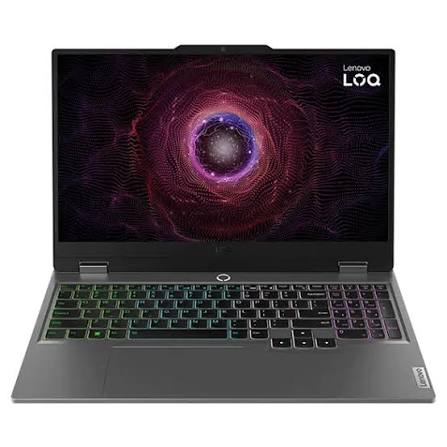
2. Lenovo LOQ

Best Performance for Premiere Pro

Specifications

  • Intel Core i5 HX / AMD Ryzen HS Series
  • NVIDIA RTX 3050 or RTX 4050 (depending on offers)
  • 16GB RAM
  • 512GB SSD

Why Buy?

Lenovo LOQ has quickly become one of the most recommended laptops for creators. The HX processor offers desktop-level performance, while the RTX GPU accelerates rendering in Premiere Pro and DaVinci Resolve. Community discussions also recommend choosing Ryzen-based variants over older Intel LOQ models where possible due to reported motherboard concerns on some earlier Intel batches.

Pros

✅ Fast rendering

✅ Excellent keyboard

✅ Upgrade-friendly

Cons

❌ Battery backup is average


3. HP Victus 15

Best Balanced Laptop

Specifications

  • AMD Ryzen 7
  • RTX 3050 / RTX 4050
  • 16GB RAM
  • 512GB SSD

Why Buy?

HP Victus offers excellent value for creators who also enjoy gaming. It performs well in Premiere Pro, Photoshop, Lightroom, and Blender while maintaining good thermals.

Pros

✅ Powerful CPU

✅ Reliable performance

✅ Comfortable keyboard

Cons

❌ Display colors could be better


4. Acer Nitro V

Best Budget Editing Laptop

Specifications

  • Intel Core i5
  • NVIDIA RTX 3050
  • 16GB RAM
  • 512GB SSD

Why Buy?

If your budget is closer to ₹70,000, the Acer Nitro V is one of the best options available. It offers dedicated RTX graphics and enough power for YouTube editing, Reels, Shorts, and freelance work.

Pros

✅ Affordable

✅ Dedicated GPU

✅ Good cooling

Cons

❌ Average speakers


5. ASUS Vivobook 16

Best Thin & Lightweight Laptop

Specifications

  • Intel Core i7
  • Intel Graphics
  • 16GB RAM
  • 512GB SSD
  • 16-inch IPS Display

Why Buy?

Not everyone needs a gaming laptop. If your work mainly includes 1080p editing, social media videos, thumbnails, and basic After Effects projects, the Vivobook offers excellent portability with a large display.

Pros

✅ Lightweight

✅ Premium design

✅ Excellent display

Cons

❌ Not suitable for heavy 4K editing


Quick Comparison

LaptopProcessorGPUBest For
ASUS TUF Gaming A15Ryzen 7RTX 3050Overall Performance
Lenovo LOQIntel HX / Ryzen HSRTX 3050 / 4050Premiere Pro
HP Victus 15Ryzen 7RTX 3050 / 4050Balanced Editing
Acer Nitro VIntel Core i5RTX 3050Budget Creators
ASUS Vivobook 16Intel Core i7IntegratedBeginners

Which Laptop Should You Choose?

Choose ASUS TUF A15 if:

  • You edit videos every day.
  • You use Premiere Pro and After Effects.
  • You also play games.

Choose Lenovo LOQ if:

  • Rendering speed is your priority.
  • You want the best value for money.

Choose HP Victus if:

  • You want a balance between performance and design.

Choose Acer Nitro V if:

  • Your budget is around ₹70,000.

Choose ASUS Vivobook if:

  • You want a lightweight laptop for travel and everyday editing.

Final Verdict

For most video editors in 2026, a laptop with 16GB RAM, a fast SSD, and an NVIDIA RTX GPU provides the best experience. Across the sub-₹80,000 segment, the ASUS TUF Gaming A15 and Lenovo LOQ stand out as the strongest all-round choices thanks to their powerful processors, dedicated graphics, and upgrade options. Current buying guides for India continue to favor these kinds of gaming-class laptops for content creation because they offer the sustained CPU/GPU performance needed for Premiere Pro and DaVinci Resolve.

Whether you’re editing YouTube videos, Instagram Reels, cinematic films, or client projects, these laptops can handle professional workflows without exceeding your ₹80,000 budget.