
 Cart is empty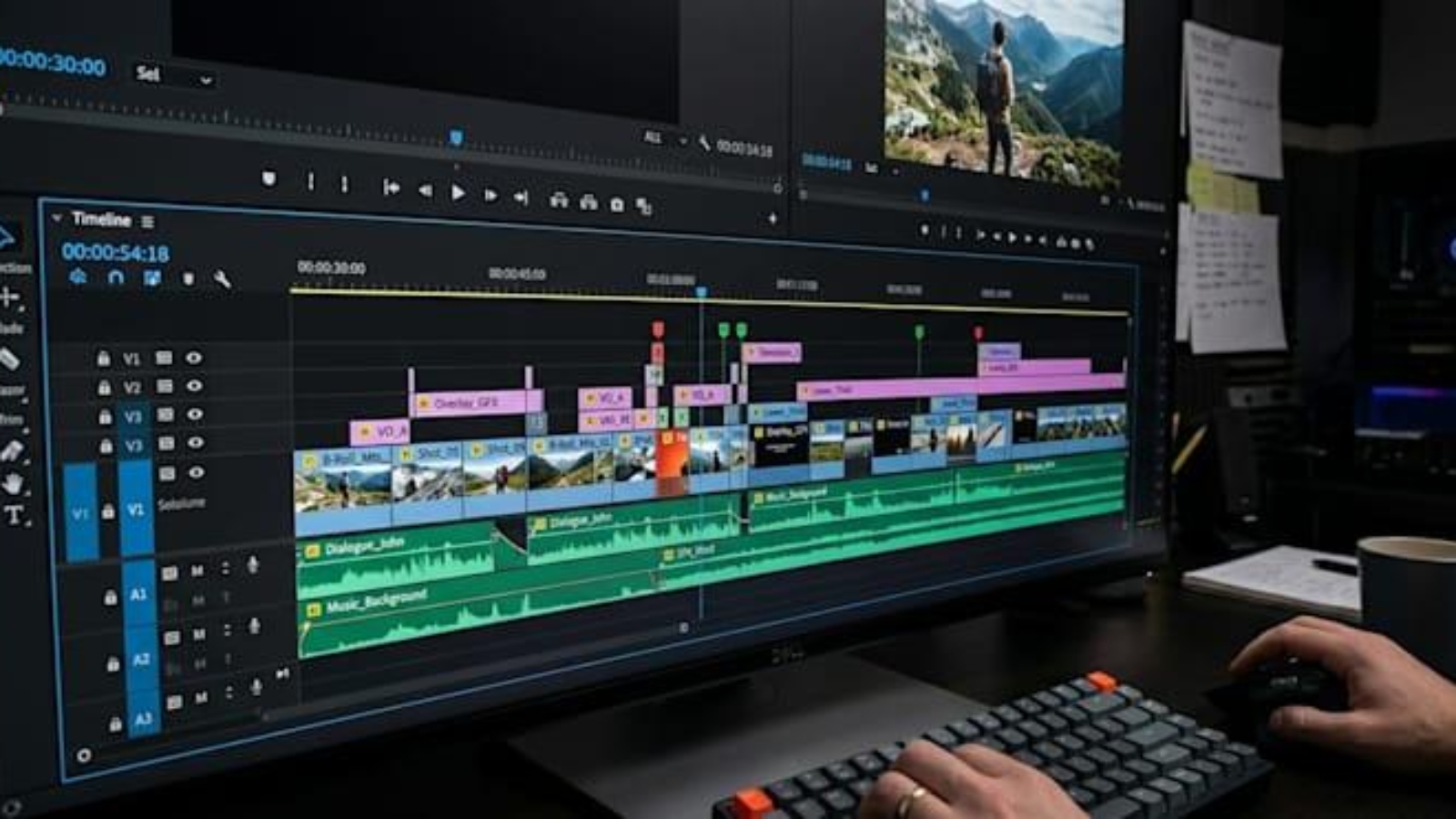
Best Tech Products for a Smooth Video Editing Workflow in 2026
Focus Keyword: best tech products for video editing
Secondary Keywords: video editing setup, best gadgets for video editors, video editing workflow, tech products for content creators
Video editing can be demanding, especially when you’re working with 4K footage, motion graphics, color grading, and large project files. The right technology can make your workflow faster, smoother, and more reliable.
From a powerful laptop to a fast SSD and color-accurate monitor, the best tech products for video editing aren’t necessarily the most expensive ones—they’re the products that solve the problems you face every day.

1. Powerful Laptop or Desktop
Your computer is the heart of your video editing workflow. Modern applications such as Adobe Premiere Pro, After Effects, and DaVinci Resolve can require significant CPU, GPU, RAM, and storage performance.
For a comfortable editing experience, consider:
- Modern multi-core processor
- 16GB RAM or more
- 32GB+ RAM for advanced editing and After Effects
- Dedicated or powerful integrated GPU
- Fast NVMe SSD
- Good cooling system
For professional 4K editing and heavy motion graphics, a higher-performance machine can save considerable time during previews, effects processing, and exports. Current 2026 laptop guides also emphasize CPU/GPU performance, RAM, fast SSD storage, and display quality for creative workloads. (91mobiles)
Why it matters
A powerful computer means less timeline lag, faster previews, and shorter rendering times.
2. Fast SSD Storage
Video projects can quickly consume hundreds of gigabytes. A fast SSD is therefore one of the most useful tech products for video editors.

A good storage setup could look like this:
Internal SSD → Software and operating system
Secondary SSD → Current editing projects
External SSD → Project files and backups
SSD storage can improve application loading and file access, while external storage is useful when large video libraries exceed internal capacity. (HP)
3. Color-Accurate Monitor
A monitor isn’t just for seeing your timeline. If you’re doing color correction or grading, you need a display you can trust.
Look for:
- 4K resolution
- Good color accuracy
- Wide color gamut
- IPS or professional-grade display technology
- Adjustable brightness
- Comfortable screen size
A larger monitor also gives you more room for your timeline, effects panels, scopes, and preview window.
Recent 2026 monitor recommendations emphasize 4K resolution, color accuracy, wide color coverage, and USB-C/Thunderbolt connectivity for professional post-production. (TechRadar)
4. External Hard Drive for Backup
One of the biggest mistakes an editor can make is keeping a project in only one location.
Imagine spending 20 hours editing a client project and then losing the footage because of a drive failure.
That’s why backup storage is essential.
Keep copies of:
- Original footage
- Premiere/After Effects project files
- Graphics
- Audio
- Final exports
- Project assets
For important client work, having both local and cloud/off-site backups provides additional protection.
5. Good Headphones
Video editing isn’t only about visuals. Audio quality is equally important.
Good headphones can help you identify:
- Background noise
- Voice problems
- Audio clipping
- Music levels
- Sound effects
- Unwanted hums
If you create YouTube videos, podcasts, reels, advertisements, or client projects, reliable audio monitoring can make a noticeable difference.

6. Second Monitor
A second monitor can significantly improve productivity.
You can keep your:
Main monitor: Timeline + editing software
Second monitor: Preview + reference material + scripts + project files
Instead of constantly switching between windows, you can see more of your workflow at the same time.
This can be especially useful for professional editors working on long-form content and complex projects.
7. Comfortable Keyboard and Mouse
Editors spend hours clicking, dragging, trimming, and navigating timelines.
A comfortable keyboard and mouse can make long editing sessions easier.
A keyboard with customizable shortcuts can be particularly useful because applications such as Premiere Pro and After Effects rely heavily on keyboard commands.
A mouse with programmable buttons can also help you assign frequently used functions.
8. USB-C Hub or Docking Station
Modern laptops often don’t have enough ports for every editing accessory.
A USB-C hub or docking station can allow you to connect:
- External SSD
- Monitor
- Mouse
- Keyboard
- Card reader
- Headphones
- Other USB devices
This can turn a laptop into a more complete desktop-style editing workstation.

9. Fast Memory Card Reader
If you record your own footage, a fast card reader can save a surprising amount of time.
Instead of transferring footage through a slow connection, a high-speed reader can quickly move files from your camera’s SD or CFexpress card to your editing storage.
This becomes particularly useful when you’re handling large amounts of 4K footage.
10. Cloud Storage
Cloud storage provides another layer of protection for important projects.
It can be useful for:
- Client collaboration
- Project backups
- Sharing large files
- Storing documents
- Keeping important project assets accessible
For freelancers, cloud storage can also make it easier to share files with clients without repeatedly transferring everything through physical drives.
11. UPS or Power Backup
Power interruptions can be frustrating when you’re rendering a project or working on an important client edit.
A UPS can provide temporary power to your workstation, giving you time to save your project and shut down safely.
For desktop editors, it’s a relatively simple addition that can protect both equipment and ongoing work.
What Should You Buy First?
You don’t need to purchase everything at once.
If you’re building a video editing setup from scratch, prioritize your purchases in this order:
| Priority | Tech Product | Why |
|---|---|---|
| 🥇 1 | Powerful PC/Laptop | Core editing performance |
| 🥈 2 | Fast SSD | Faster file access |
| 🥉 3 | Backup Drive | Protects your projects |
| 4 | Color-Accurate Monitor | Better visual accuracy |
| 5 | Headphones | Better audio editing |
| 6 | Second Monitor | More workspace |
| 7 | Keyboard & Mouse | Comfort and productivity |
| 8 | USB-C Hub | Better connectivity |
| 9 | Card Reader | Faster footage transfer |
| 10 | UPS | Power protection |
Best Setup for Different Editors
🎬 Beginner Editor
A beginner can start with:
- 16GB RAM
- SSD storage
- Capable CPU
- Basic GPU
- Good headphones
- External backup drive
You don’t need an expensive professional workstation immediately.
💻 Freelance Video Editor
Freelancers should consider:
- 32GB RAM
- Powerful CPU/GPU
- Fast NVMe SSD
- External SSD
- Color-accurate monitor
- Good headphones
- Cloud backup
🎥 Professional Editor
Professionals working with 4K footage, VFX, and motion graphics may benefit from:
- High-end workstation
- 32–64GB+ RAM depending on workload
- Powerful GPU
- Multiple SSDs
- Professional monitor
- Dedicated backup system
- UPS
- Professional audio equipment
Final Thoughts
The best tech products for video editing aren’t simply the products with the highest specifications. The best setup is one that removes bottlenecks from your workflow.
A powerful computer gives you performance, a fast SSD improves file handling, a good monitor helps with visual accuracy, and reliable backup storage protects your work.
Start with the component that’s currently slowing you down, then upgrade your setup step by step.
For more tech product guides, buying advice, and technology-related content, explore ShubhamEdits.
Suggested images for your blog
For a professional-looking article, I’d use 4–5 images:
- Hero image: Complete video editing workstation
- After the laptop section: Laptop + editing timeline
- After SSD section: External SSD + laptop
- After headphones section: Headphones + editing setup
- Before final thoughts: Complete professional editing desk
This gives the article good visual breaks without making it feel overloaded with images.

Add a Comment